




実装の考え方
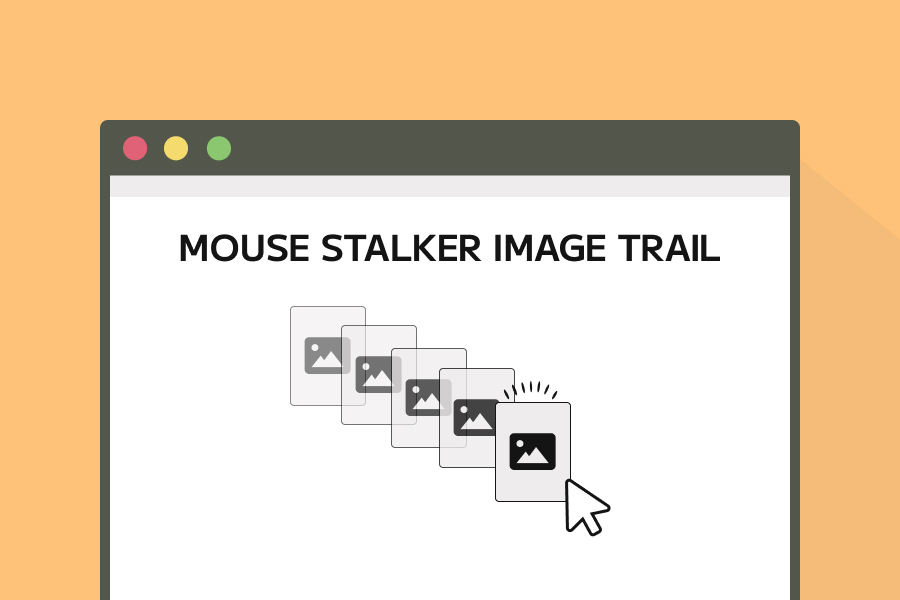
マウスが動いたら画像を表示するので、mousemoveイベントで画像の表示をするようにします。そのままだと、画像が即時に繰り返し表示されるので、差分時間を設定して画像の表示を遅らせるようにします。また、画像の表示のアニメーションに関しては、GSAPを使用します。
画像をループで繰り返し表示するために、剰余演算を用いて画像のインデックスを管理します。
実装方法
それでは実際に実装していきましょう。
まずはHTMLになります。
HTML
<div class="container">
  <div class="content">
    <div class="content__img">
      <img src="https://picsum.photos/300/200?random=1" alt="">
    </div>
    <!-- 画像が続く -->
  </div>
</div>
画像は、contentの中にcontent__imgクラスとして配置します。contentの中に繰り返し表示したい画像を配置してください。デモの場合は6枚の画像を配置しています。
CSS
CSSは以下のようになります。
.container {
  width: 100%;
  height: 100vh;
  overflow: hidden; /* 画像がはみ出さないように */
}

.content {
  width: 100%;
  height: 100%;
  position: relative;
}

.content__img {
  position: absolute;
  top: 0;
  left: 0;
  translate: -50% -50%;
  opacity: 0;
  pointer-events: none;
}
マウスの中心から、画像を表示するようにするためにtranslate: -50% -50%を設定します。
最後にJavaScriptの実装になります。
JavaScript
今回もクラスで書いていきます。ImageTrailクラスを作成しましょう。
import gsap from 'gsap';

class ImageTrail {
  constructor() {
    this.el = document.querySelector('.content');
    this.imgContainers = this.el.querySelectorAll('.content__img');
    this.images = Array.from(this.imgContainers).map(c => c.querySelector('img'));
    this.current = 0;
    this.mouseX = window.innerWidth / 2;
    this.mouseY = window.innerHeight / 2;
    this.lastTime = 0;
    this.showDelay = 200; // 画像の表示間隔(ms)

    // 画像の読み込みが完了したらinit()を実行
    this.waitForImagesToLoad().then(() => {
      this.init();
    })
  }

  waitForImagesToLoad() {
    return Promise.all(this.images.map(img => new Promise(resolve => img.onload = resolve)));
  }

  init() {
    this.imagesTotal = this.images.length;

    window.addEventListener('mousemove', this.onMouseMove.bind(this));
  }

  onMouseMove(e) {
    const now = performance.now();
    if (now - this.lastTime < this.showDelay) return;

    this.lastTime = now;

    this.mouseX = e.clientX;
    this.mouseY = e.clientY;

    this.showNextImage();
  }

  showNextImage() {
    const img = this.imgContainers[this.current];

    // 表示アニメーション
    gsap.set(img, {
      x: this.mouseX,
      y: this.mouseY,
      scale: 0.8,
      opacity: 1,
    });

    gsap.to(img, {
      duration: 0.4,
      opacity: 1,
      scale: 1,
    });

    // 一定時間後に非表示
    gsap.to(img, {
      duration: 0.4,
      opacity: 0,
      scale: 0.4,
      delay: 0.4,
      ease: 'power2.in'
    })

    this.current = (this.current + 1) % this.imagesTotal;
  }
}

new ImageTrail();
それでは、解説していきます。
constructor()
constructor()では、.content要素内の画像コンテンツ.content__imgを取得し、img要素をthis.imagesに格納します。
constructor() {
  this.el = document.querySelector('.content');
  this.imgContainers = this.el.querySelectorAll('.content__img');
  this.images = Array.from(this.imgContainers).map(c => c.querySelector('img'));
}
また、以下は初期状態を設定しています。
constructor() {
  // ...
  this.current = 0;
  this.mouseX = window.innerWidth / 2;
  this.mouseY = window.innerHeight / 2;
  this.lastTime = 0;
  this.showDelay = 200; // 画像の表示間隔(ms)
}
それぞれの役割は以下の通りです。
current: 現在表示している画像のインデックスを保持します。mouseX,mouseY: マウスの現在座標。lastTime: 最後に画像を表示した時間(ms)。showDelay: 次の画像を表示するまでの遅延時間(ms)。
次のコードは、画像読み込みのメソッドwaitForImagesToLoad()で、画像の読み込みが完了したら、init()メソッドを呼び出します。
constructor() {
  // ...
  waitForImagesToLoad().then(() => {
    this.init();
  });
}

waitForImagesToLoad() {
  return Promise.all(this.images.map(img => new Promise(resolve => img.onload = resolve)));
}
初期化処理 init()
init()メソッドでは、画像の総数をthis.imagesTotalに格納します。
また、mousemoveイベントを登録し、マウスが動いたらshowNextImage()を呼び出します。
init() {
  this.imagesTotal = this.images.length;
  window.addEventListener('mousemove', this.onMouseMove.bind(this));
}
デモでは、windowオブジェクトに対してmousemoveイベントを登録しているので、常にmousemoveイベントが発生します。実案件では、アニメーションしたい要素に対してmousemoveイベントを登録してください。
マウス移動の処理 onMouseMove()
マウス移動の処理のメソッドonMouseMove()では、マウスの座標を取得し、showNextImage()を呼び出します。
onMouseMove(e) {
  this.mouseX = e.clientX;
  this.mouseY = e.clientY;

  this.showNextImage();
}
ここでそのままだと、画像が連続して表示されるので、差分時間を計算して、遅延時間を過ぎたら画像を表示するようにします。前回表示から、showDelay(200ms)未満ならreturnし抜け出します。
onMouseMove(e) {
  const now = performance.now();
  if (now - this.lastTime < this.showDelay) return;
  this.lastTime = now;

  this.mouseX = e.clientX;
  this.mouseY = e.clientY;

  this.showNextImage();
}
次の画像を表示 showNextimage()
showNextImage()メソッドでは、this.imageContainerから現在の画像(this.current)を取得し、GSAPを使用して画像を表示させます。
showNextImage() {
  const image = this.images[this.current];

  // 表示アニメーション
  gsap.set(img, {
    x: this.mouseX,
    y: this.mouseY,
    scale: 0.8,
    opacity: 1,
  });

  gsap.to(img, {
    duration: 0.4,
    opacity: 1,
    scale: 1,
  });

  // 一定時間後に非表示
  gsap.to(img, {
    duration: 0.4,
    opacity: 0,
    scale: 0.4,
    delay: 0.4,
    ease: 'power2.in'
  })

  this.current = (this.current + 1) % this.imagesTotal;
}
GSAPのアニメーションではやっていることは、次のようになります。
// 画像の設定
gsap.set(img, {
  x: this.mouseX,
  y: this.mouseY,
  scale: 0.8,
  opacity: 0,
});

// 表示アニメーション
gsap.to(img, {
  duration: 0.4,
  opacity: 1,
  scale: 1,
});
このコードは、現在の画像をマウス位置に移動させ、少し縮小した状態にします。
そして、画像を0.4秒かけて元のサイズに拡大して表示させます。
// 一定時間後に非表示
gsap.to(img, {
  duration: 0.4,
  opacity: 0,
  scale: 0.4,
  delay: 0.4,
  ease: 'power2.in'
})
このコードは、表示から0.4秒後に画像を非表示と縮小します。
this.current = (this.current + 1) % this.imagesTotal;
画像のアニメーションが終わったら、次の画像を表示するために、画像の総数(this.imagesTotal)で割った余りを計算して、次の画像のインデックスを取得します。このようにすることで、画像をループさせることができます。
以上で、マウスに画像が次々と追従してくるImage Trailのアニメーションが完成しました。
ぜひ、このアニメーションを参考にして、自分なりのアニメーションを作成してみてください!